

PREMIUM FEATURE ✨Lago may automatically generate a credit note when a subscription is upgraded or
downgraded. However, only users with a premium license can manually generate
credit notes via the user interface or the API. Please
contact us to get access to Lago Cloud and Lago
Self-Hosted Premium.
Access credit notes creation flow
Credit notes can only be issued for invoices with status
finalized and an amount greater than zero.- Open the invoice
- Go to the Credit notes tab
- Click Issue a credit note
- Credit the full invoice amount (tax included) for future use
- Refund the paid amount
- Offset the remaining invoice amount due
For subscription invoices, prepaid credits and applied credit notes cannot be refunded.
They can only be credited back to the customer’s account for future use.
Coupons are non-refundable and cannot be credited back.
Prepaid credit invoices
Prepaid credit invoices follow specific rules:- If a payment is recorded: You can refund the available wallet balance. This immediately voids the credits from the wallet.
- If no payment is recorded: You can only offset the invoice. The wallet transaction is not settled and the wallet balance remains unchanged.
Issue a credit note
- Dashboard
- API
- Select a reason from the list (e.g. duplicate charge, order cancellation, etc.);
- Add an internal note (optional);
- Select the item(s) and enter the amount(s) you want to credit;
- Select the credit method(s) (only available for paid invoices - learn more); and
- Click “Issue credit note” to confirm.
For each item, you must enter a credit amount equal to or less than the
initial amount of the item, excluding tax. The total amount of the credit note
cannot exceed the total amount of the invoice.
- Appears in the Credit notes tab of the customer and invoice views
- Triggers a
credit_note.createdwebhook
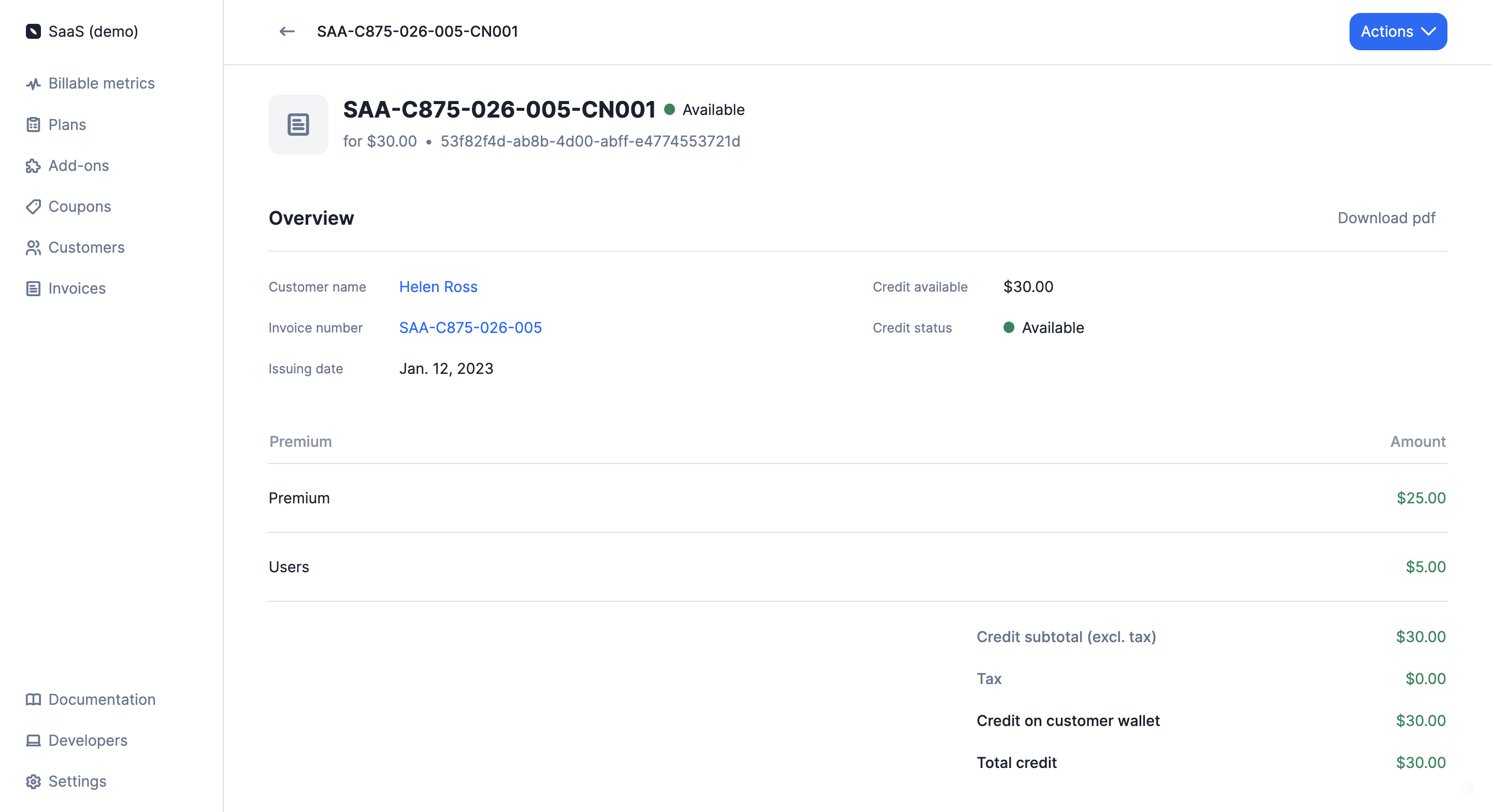
Credit note detail
Credit methods
Offset
If the invoice has an amount due greater than zero, you can offset it. This reduces the invoice amount due. Once it reaches zero, Lago automatically marksinvoice.payment_status as succeeded.
Refund
If a payment has been recorded, you can refund the paid amount.- If the customer is connected to a payment provider, Lago automatically triggers the refund.
- The credit note includes a
refund_status, updated topending,succeeded, orfailed.
refund_status updates are the user’s responsibility.
Credit note wallet
You can credit an amount for future use instead of refunding it. The credited amount is stored in a single credit note wallet and visible in the customer’s Credit notes tab. This balance is automatically applied to future subscription invoices.Credit note wallets are different from wallets associated with prepaid credits.
credit_status is set to available.
Once the wallet balance reaches zero, the status automatically changes to consumed.
Void available credit
You can still void any remaining credit linked to a specific credit note when needed. To do so:- Dashboard
- API
- Go to the “Customers” section;
- Select a customer to open the customer view;
- Open the “Credit notes” tab;
- Click a credit note to see its details; and
- Select “Void credit available” from the “Actions” dropdown (upper right corner).